

The Edison Robot: A Teacher's Guide to Edison V3, Coding Options and Class Sets
12th Nov 2026
If you've been handed a STEM budget and told to "do something with coding," the Edison robot is one of the first names you'll run into. It's small enough to fit in your palm, tough enough to survive a fourth grader, and it grows with students from kindergarten barcodes all the way to real text-based code. That range is a big part of why schools buy Edison robots by the classroom set.
This guide covers what Edison actually is, how Edison V3 differs from the earlier V2, how each coding option fits a grade level, and how to figure out how many robots you need. Edison is one of the robotics lines Geyer carries, and we've written this to be useful whether you're outfitting a district or buying a single robot for a homeschool table.
What is an Edison robot?
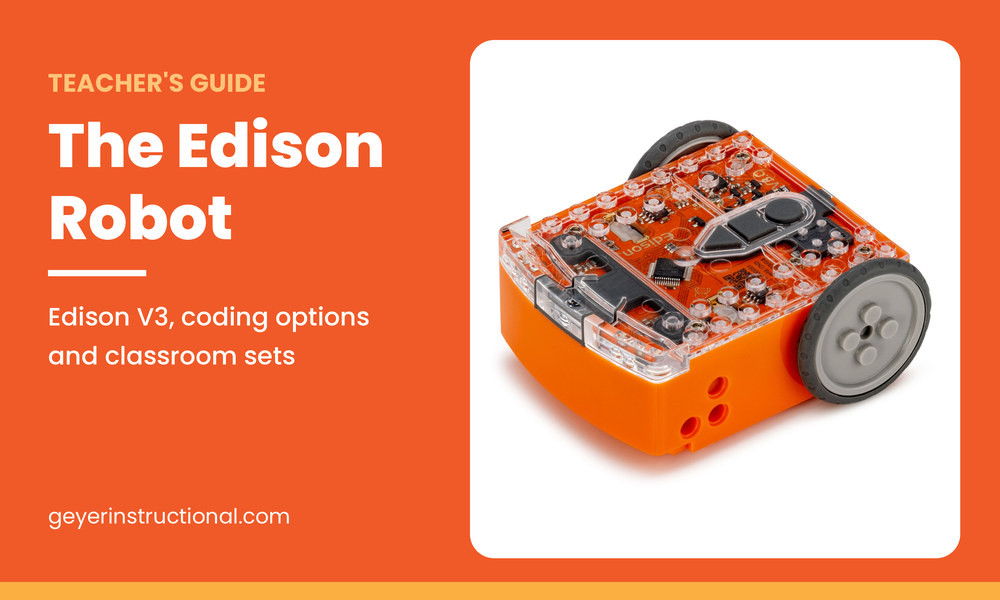
An Edison robot is a small, programmable educational robot made by Microbric, a company based in Adelaide, South Australia. It's designed for hands-on coding and robotics lessons with students from about 4 to 16 years old. Students can program it with scannable barcodes, printable coding cards, block-based languages, or a Python-based text language.
Each robot comes fully assembled. There's nothing to build before the first lesson, no loose parts to lose, and the programming apps run in a web browser, free for unlimited users. Microbric also publishes its lesson plans, teacher guides and student worksheets for free under a Creative Commons license, so you can print, adapt and translate them for your class.
What's the difference between Edison V2 and Edison V3?
Edison V3, introduced in January 2024, has a built-in rechargeable battery and programs over an attached USB cable. Edison V2, the earlier model made from 2016 to 2023, runs on four AAA batteries and programs through an EdComm cable that plugs into a headphone jack.
If your school has Edison robots on hand and you're not sure which version they are, look in the bottom right corner next to the round button. The version is printed there. A battery door on the back means V2. A USB cable tucked underneath means V3.
| Feature | Edison V2 | Edison V3 |
|---|---|---|
| Introduced | 2016 (made through 2023) | January 2024 |
| Power | 4 AAA batteries | Internal Li-ion battery, about 90 minutes of continuous driving |
| Programming connection | EdComm cable (headphone jack) | Attached USB-A cable; screen flashing on iPads |
| Card Coding and EdRemote | Not supported | Supported |
Honestly, the battery is the change teachers notice most. Nobody misses digging through a drawer for AAAs ten minutes before a lesson. A fully drained V3 takes four to five hours to recharge, either over its USB cable or on an EdCharger, so plug the whole set in at the end of the day and they'll be ready the next morning.
What can Edison robots do?
Edison robots can drive, turn precise angles, follow lines, avoid obstacles, react to claps and light, play sounds, flash LEDs, respond to a TV remote, and send infrared messages to other Edison robots. With the wheels removed, Edison's two motors can power LEGO-compatible builds through cross-axle sockets.
Every one of those features maps to a sensor you can teach with. Here's how they line up with lesson ideas:
| Sensor or part | What it does | Good for teaching |
|---|---|---|
| Line tracker (underneath) | Tells dark surfaces from light ones; also reads barcodes | Algorithms, loops |
| Infrared obstacle detection | Spots objects ahead, left or right | If/else decisions, mazes |
| Two light sensors (top) | Measure visible light as a number | Variables, data |
| Sound sensor (doubles as a speaker) | Hears claps, plays beeps and notes | Conditionals, music in STEAM |
| Two motors with wheel encoders | Drive and turn by measured distance | Measurement, angles, geometry |
| Infrared receiver | Takes remote commands and messages from other robots | Communication, group projects |
Microbric's Edison V3 technical overview goes deeper if you want the specs, down to the 1.25 mm resolution on the wheel encoders.
How do you program an Edison robot?
Open one of the free Edison apps (EdBlocks, EdScratch or EdPy) in a web browser, write a program or load a demo, and connect Edison V3 with its USB cable. Click "Program Edison" to download, unplug, then press the triangle button to run it. On iPads, the program transfers by screen flashing instead.
That's the screen-based route. Edison also has two ways to code with no device at all, and they're where we'd start nearly every class. Here's the full ladder:
| Option | Recommended age | How it works |
|---|---|---|
| Barcodes | 4+ | Drive Edison over a printed barcode to start a built-in program |
| Card Coding (V3 only) | All ages; great for early grades | Scan a sequence of printed cards to build a real program |
| EdBlocks | 7+ | Icon-based drag-and-drop blocks laid out horizontally |
| EdScratch | 10+ | Vertical blocks based on Scratch, with variables and more control |
| EdPy | 13+ | Typed code based on Python |
Screen-free: barcodes and Card Coding
Every Edison ships with programs already stored in its memory, including line tracking, avoid obstacles, follow a torch, clap-controlled driving, bounce in borders and sumo wrestle. Students set Edison on the white just to the right of a barcode, press the round button three times, and the robot drives forward, scans it and plays a success sound. Five-year-olds can do this. So can a room of skeptical seventh graders, and we'd argue they should, because watching the robot "see" a barcode is the fastest way to explain what a sensor is.
Card Coding works only with Edison V3. Students line up printable barcode cards, scan them one at a time, and Edison runs the sequence. According to Microbric, it covers sequencing, loops, decision-making, functions and sensors, and Microbric offers a free pack of classroom-ready Card Coding lessons. It's a great fit if your Chromebook cart is shared with three other grades. If you'd rather not print and laminate your own, we carry Edison Card Coding cards on 18pt cardstock.
EdBlocks, EdScratch and EdPy
EdBlocks uses pictures instead of words, which makes it friendly for readers who aren't fluent yet. EdScratch will feel familiar to any student who has used Scratch, and it supports multiple spoken languages, which helps in multilingual classrooms. EdPy is where middle and high schoolers start typing real syntax and debugging their own typos, which is half the education right there.
You don't have to pick one. The same robot works with all three, so a sixth grader can move from EdScratch to EdPy mid-year without new hardware. (If you come across older lessons that mention EdWare, that was Edison's original language, which Microbric has since retired.)
What age is the Edison robot for?
Microbric designs Edison for students aged 4 to 16. Barcodes work from age 4, EdBlocks from 7, EdScratch from 10, and EdPy from 13. Because one robot runs every option, a school can buy one set and share it across elementary, middle and high school.
In practice, here's how we'd split it. K-2 classes live in barcodes and Card Coding. Grades 3 and 4 are EdBlocks territory. Grades 5 through 8 get the most out of EdScratch, with stronger students pushing into EdPy. High school students in an intro programming course can go straight to EdPy and treat Edison as a way to see their Python do something physical. That last group surprises people. A loop that makes a robot trace a square is a lot more memorable than one that prints numbers to a console.
Three Edison lessons for your first week
Microbric's free Edison lesson plans are good and very thorough. But if you just want to get robots on tables, these three work well.
Day one: barcodes on the mat. Lay out an EdMat activity mat (it's 23 x 33 inches with the pre-set program barcodes printed right on it) and let pairs try line tracking and sumo wrestle. Ask them to write down what they think the robot is "looking at." You'll get wild answers, and that's the point.
Day two: clap-controlled driving. Scan the clap barcode and let students control Edison with claps. Then ask what other sounds might set it off, and let them test their guesses. You've just opened a conversation about inputs and false triggers without ever saying either term.
Day three: first program. In EdBlocks or EdScratch, have students make Edison drive forward, turn, and beep, then try to trace a square. It often doesn't come out square on the first try. That gap between what they coded and what the robot did is where the real thinking starts.
A few line-tracking tips from Microbric's own troubleshooting page will save you some frustration. Use a dark line about 1.5 cm (0.6 inches) wide on white, start the robot on the white rather than on the line, keep it out of direct sunlight, and never use glossy paper. If you laminate your mats, matte finish only.
Is Edison compatible with LEGO bricks?
Yes. Edison has two strips of 2 x 8 studs on top and two rows of 2 x 8 stud sockets underneath, plus pin and stud holes along the sides. With the wheels pulled off, LEGO cross axles fit the powered sockets, so the motors can drive your own builds.
This is where Edison turns into an engineering tool. The EdCreate creator's kit adds gears, pegs and building blocks, and it comes with guided EdBuild projects plus open-ended design challenges. You can even stack one Edison on top of another. If you already have a tub of LEGO bricks in the classroom, you've got a head start.
Tips for managing a class set
Thirty robots is a lot of small orange plastic to keep track of. A few habits make it easier:
- Number every robot and its spot in the bin. Students check out "their" robot by number, and you'll know immediately which one is missing.
- Look at your devices before the robots arrive. Edison V3 uses a USB-A cable, so USB-C-only laptops need a USB-C to USB-A adapter. Microbric's support pages list the browsers and operating systems that work, so check them against your devices.
- On iPads, programs go over by screen flashing. Microbric suggests 80 to 90 percent screen brightness and staying away from bright light. Older iPads may need the "reliable" speed setting.
- If you'll use remotes, the EdRemote runs on separate channels, so a room full of pairs can drive at once without hijacking each other's robots.
- If a robot won't drive straight, try a calibration before assuming it's broken. Microbric's acceleration calibration takes under two minutes per robot.
One more opinion: pairs beat solo work for most ages. One student codes, one tests, and they swap. You get more talking about the problem and fewer students stuck silently.
How many Edison robots do you need?
One robot for every two students is a practical target for most classrooms, since pair programming keeps everyone involved. A class of 30 typically needs 15 robots. Schools sharing robots across several grades, or teachers who want students coding solo, often go with a 30-robot set.
Which Edison set fits your classroom?
Edison is sold as single robots and in multi-robot packs. Start with how many students will use the robots at once and whether you plan to add building projects.
| Your situation | What to look for | Where to start |
|---|---|---|
| Trying Edison out, a teacher demo robot, or a homeschool table | A single robot or a two-pack | Single Edison V3, 2-pack |
| A small group, robotics club or library makerspace | Around 10 robots | Edison V3 10-pack |
| One class of up to about 30 students working in pairs | 15 to 20 robots, so you have a few spares | Edison V3 20-pack |
| One robot per student, or a set shared across grades | A full class set of 30 | Edison V3 30-pack |
| Coding plus engineering builds | A class set bundled with EdCreate kits | EdSTEM Class Pack |
Pricing and availability are listed on each product page, and our team can put together a quote for larger orders. Add-ons like the EdCreate kit, EdMat, EdRemote and EdCharger can be added to any set.
Still deciding? You can explore the full line on our Edison robots page or compare Edison with other options in our classroom robotics kits. For more than 60 years, Geyer has helped educators find practical products for teaching and learning. We're both a manufacturer and a distributor, carrying thousands of products from trusted brands alongside our own line of graphing, dry erase and STEM/robotics products, and our support team understands school purchasing: we accept purchase orders, handle tax-exempt accounts and can put together a quote for your budget request. Schools come first for us, but there are no memberships or special qualifications to order, so homeschool families, libraries, clubs and makerspaces can buy one robot or a full set. If you're still making the case to your principal, our post on the benefits of educational robots in the classroom might help.
Is Edison worth it?
For most K-8 classrooms, we think so. Edison is built for classroom quantities, the programming apps and lesson resources are free, and one robot covers a wide range of grade levels, from barcodes in kindergarten to Python in high school. It isn't the flashiest robot out there, and that's part of its value.
There's no screen on it, no camera, no app-driven personality. What you get instead is a sturdy little machine that does exactly what students tell it to do, which is the whole lesson. When the square comes out lopsided, there's nobody to blame but the code.
Quick answers for educators
Edison Robot FAQ
QWhat is an Edison robot?
Edison is a small programmable robot made by Microbric in Australia for teaching coding and robotics to students aged 4 to 16. It can be programmed with barcodes, printable coding cards, EdBlocks, EdScratch or the Python-based EdPy, and all the software and lessons are free.
QHow do you program an Edison robot?
Open EdBlocks, EdScratch or EdPy in a browser, write or load a program, connect Edison V3 with its USB cable and click "Program Edison." Unplug it and press the triangle button to run. iPads send programs by screen flashing. For no screens at all, use barcodes or Card Coding.
QWhat age is Edison good for?
Edison is designed for students aged 4 to 16. Barcodes work from age 4, EdBlocks from 7, EdScratch from 10 and EdPy from 13, and Card Coding on Edison V3 suits all ages. Because one robot runs every option, the same set can serve kindergarten through high school.
QHow long does the Edison V3 battery last?
Microbric rates the internal battery at about 90 minutes of continuous driving while avoiding obstacles. A full recharge from empty takes 4 to 5 hours over USB or on the EdCharger. Both red LEDs stay lit when it's fully charged.
QDoes Edison work with Chromebooks and iPads?
Yes. The Edison programming apps run in a browser, so nothing needs installing. Chromebooks, Windows, Mac, Linux and Android devices program Edison V3 over USB (USB-C-only devices need an adapter). iPads program it by flashing the screen at the robot's line sensor.
QCan Edison robots be used without screens?
Yes. Every Edison can run built-in programs from printed barcodes, and Edison V3 also supports Card Coding, where students scan a sequence of printable cards to build programs with loops and functions. Both are good for younger students and classrooms with few devices.
QIs the Edison robot compatible with LEGO?
Yes. Edison works with LEGO-compatible bricks on its top, bottom and sides, and LEGO cross axles fit its powered sockets once the wheels come off. The EdCreate kit adds compatible blocks, pegs, gears and other parts, plus guided EdBuild projects for students to program.
QHow do I fix an Edison robot that won't drive straight?
Run a drive (acceleration) calibration. Print Microbric's calibration barcode, scan it, press play twice, and give the robot room to drive back and forth. It takes under two minutes. If line tracking or obstacle detection is acting up, check the lighting, use matte paper, and make sure the right sensor is turned on in the program.
LEGO is a trademark of the LEGO Group, which does not sponsor, authorize or endorse Edison robots or this article. Product details are based on Microbric's meetedison.com, where you'll find full specifications and support.
 Recently Viewed